Product update4 min read
List your car for trade in minutes: VIN, photos, go live.
How to add your car to Shifta, set what you'd trade it for, complete your listing with your VIN, details and six photos, go live, and optionally verify ownership to build trust with matches.
 By SpotaLabs Team
Putting a car up for trade used to mean writing a classified ad, taking photos in a hurry, and adding "open to trades" at the bottom in the hope someone interesting replies. On Shifta, listing is built around what makes a trade work: what your car is, and what you'd take for it.
Here's the whole flow, from adding your car to going live.
1. Add your car
Start from your Garage with Add car. Scan the VIN for the fastest start, or choose the year, make, model and trim yourself. Add the approximate mileage and your best guess at the condition. No documents or photos are needed yet.
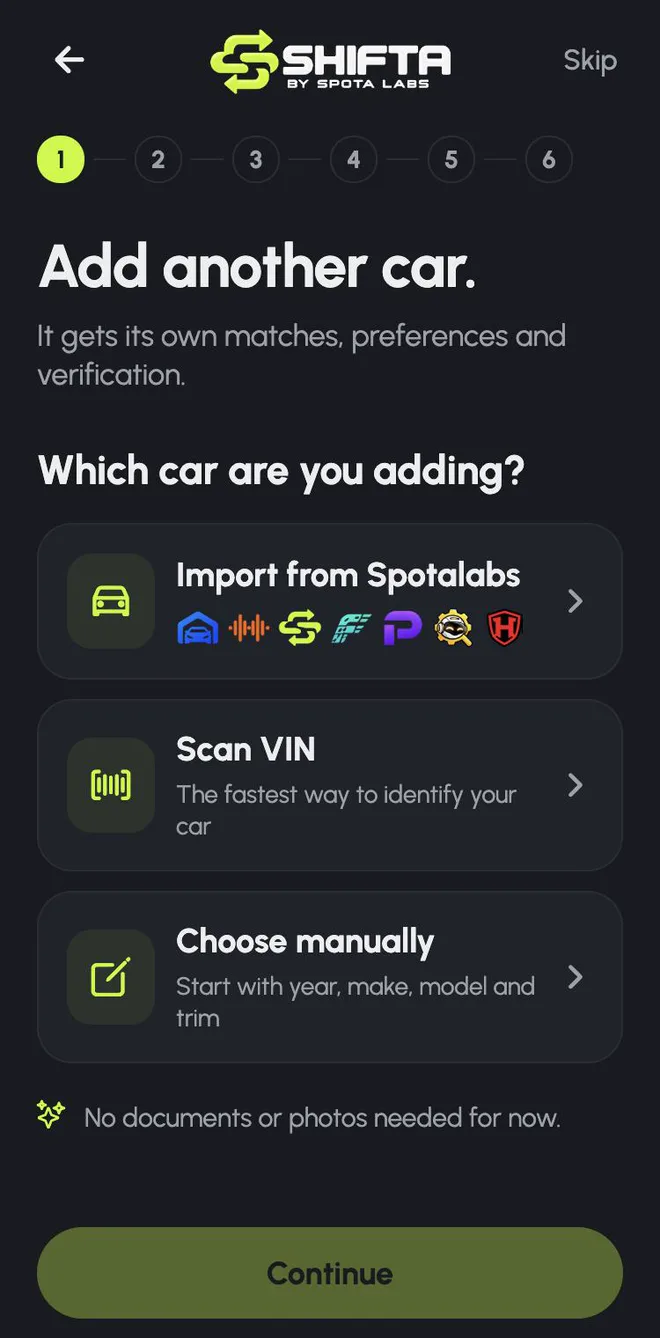
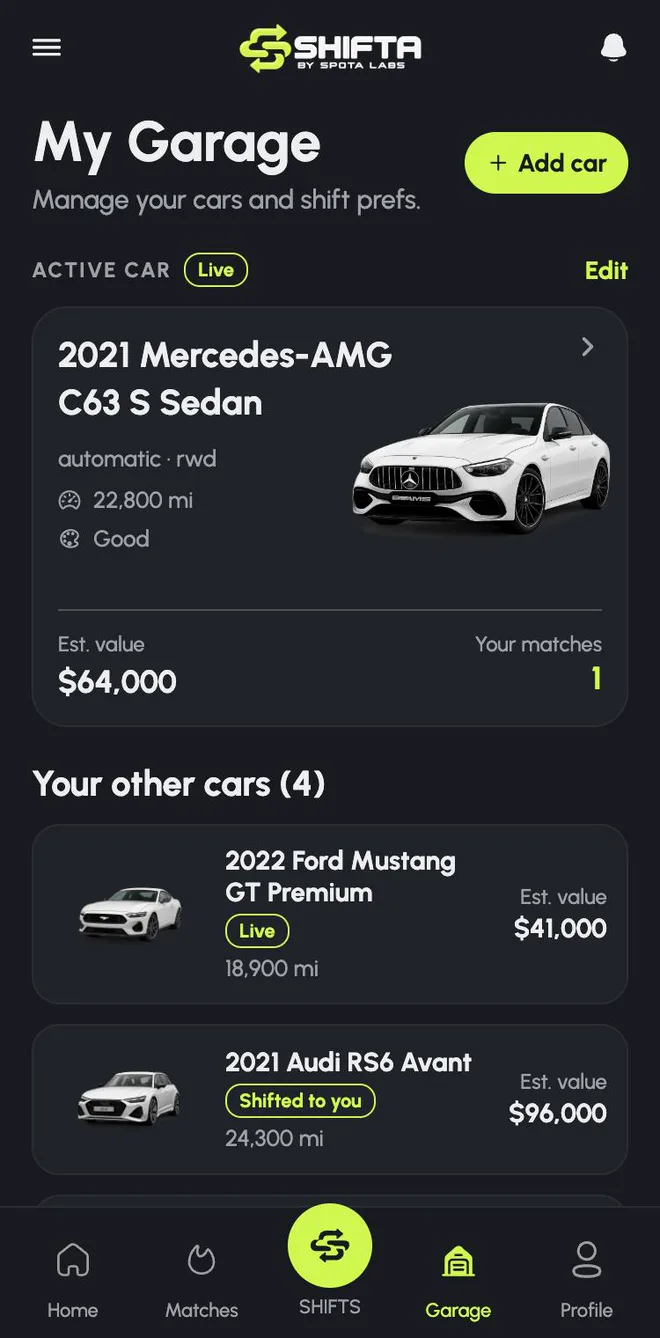
You can add as many cars as you own. Each one gets its own preferences, matches, verification and listing.
2. Tell Shifta what you'd trade it for
This is what makes a Shifta listing different from an ad. In six short steps you describe the trade you want:
- Direction. Specific dream cars, open to options across body styles and brands, or surprise me.
- What you'd drive next. Dream cars first, plus optional alternatives, brands and kinds of car.
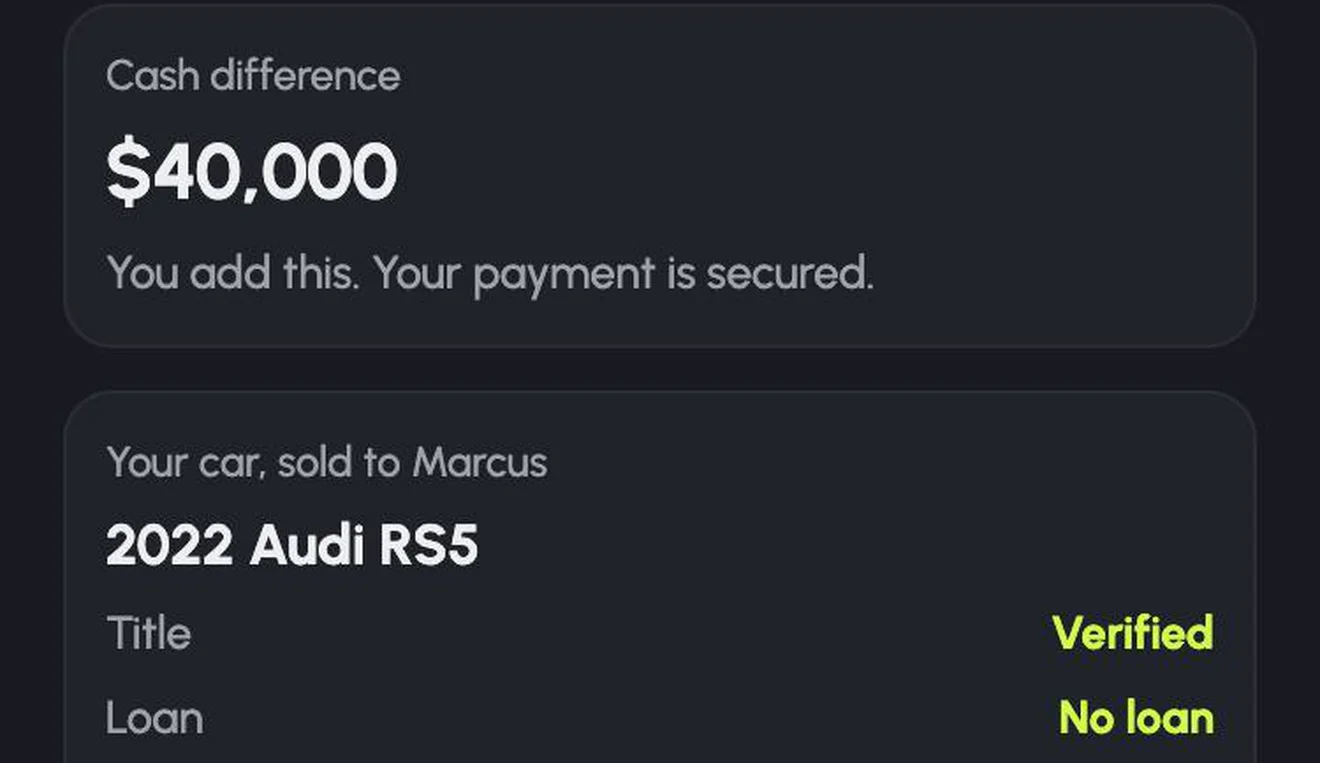
- The deal. How much cash you'd add (an even trade, up to $5,000, $10,000 or $20,000, flexible, or a custom amount) and whether you'd take cash back.
- Distance. From 50 miles to nationwide, and whether you're open to shipping.
- Deal breakers. Clean title only, no accident history, under 60k miles, no heavily modified cars, transmission.
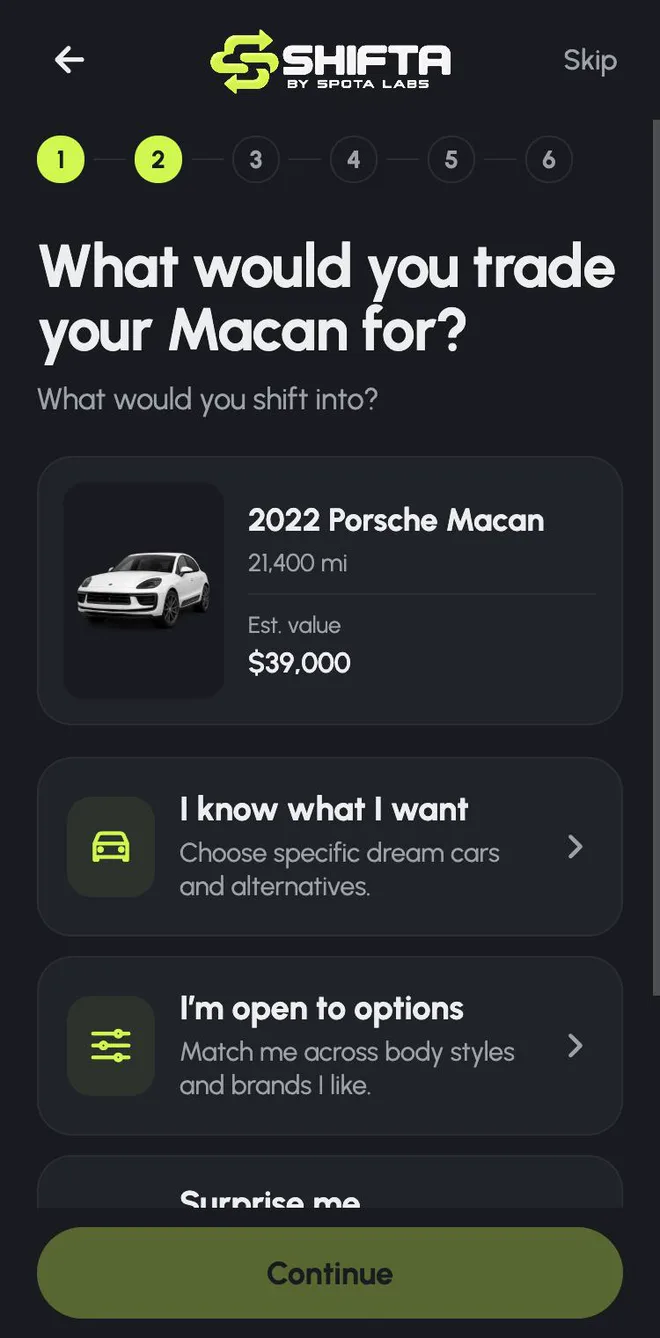
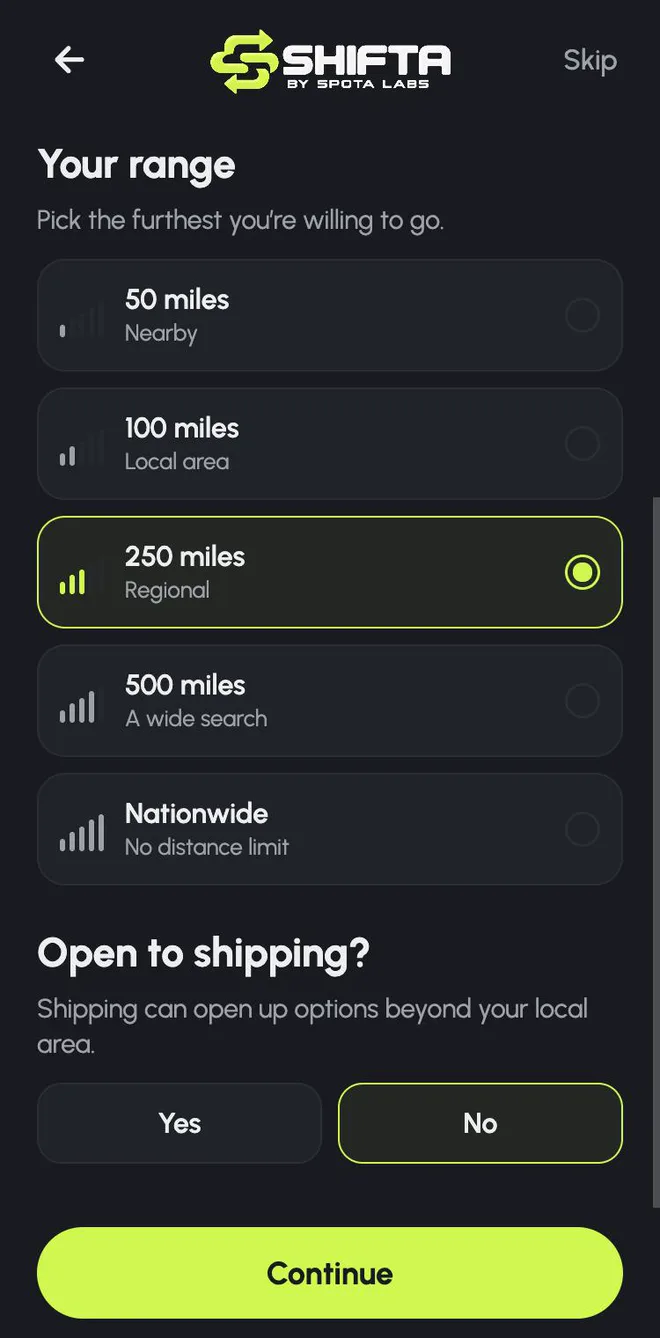
Then tap Find my matches, and Shifta shows what your car could become, before your listing is even live. Read how matching works in Why a Shifta match has to work both ways.
3. Complete your listing
To put your car in front of compatible owners, complete three short steps.
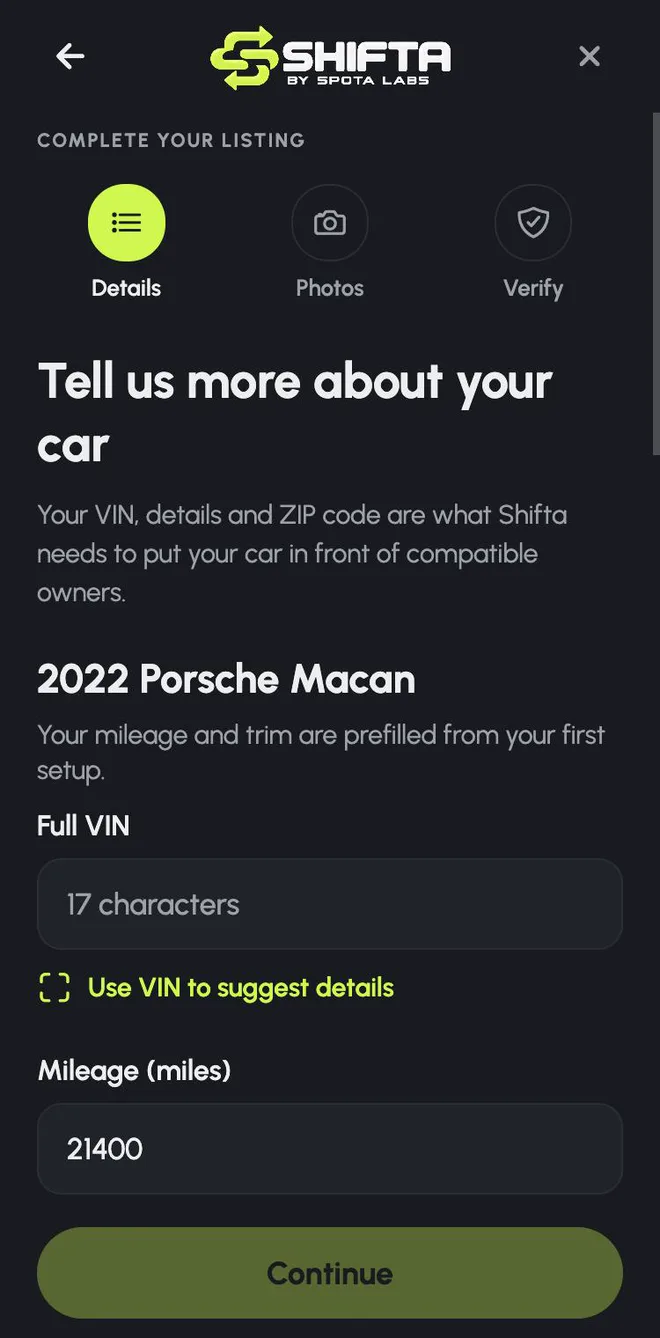
Details. Your full VIN, mileage, transmission, exterior color, fuel type, drive type and trim, plus a few quick questions: garage kept, non-smoker, service records available, any known damage. Tap Use VIN to suggest details to fill in what the VIN can tell us. Suggestions stay editable. Finally, add the ZIP code where the car is kept.
Your VIN is stored privately and isn't shown on your listing. Shifta uses the center of your ZIP code to measure distance, and your street address is never shared.
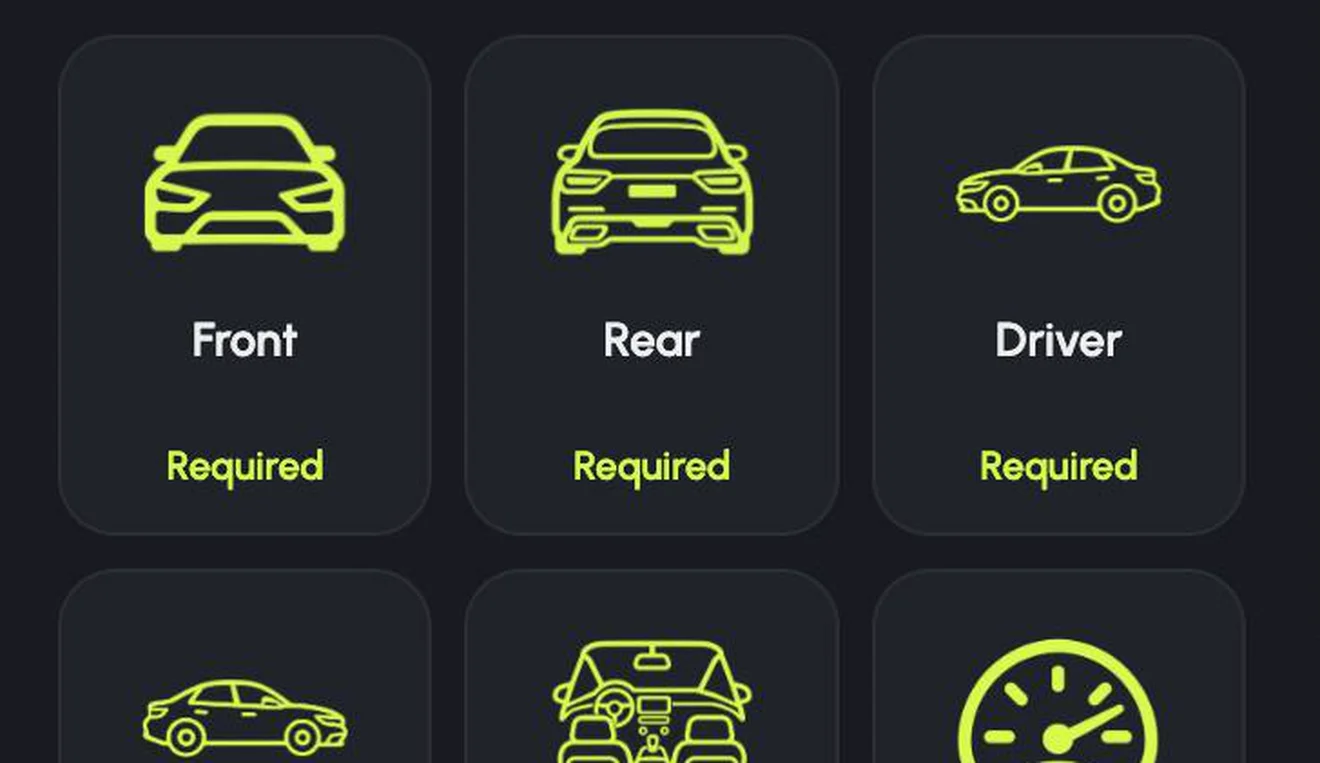
Photos. Six views are required: front, rear, driver side, passenger side, interior and odometer. Engine bay, wheels and any damage are optional, but owners appreciate them.
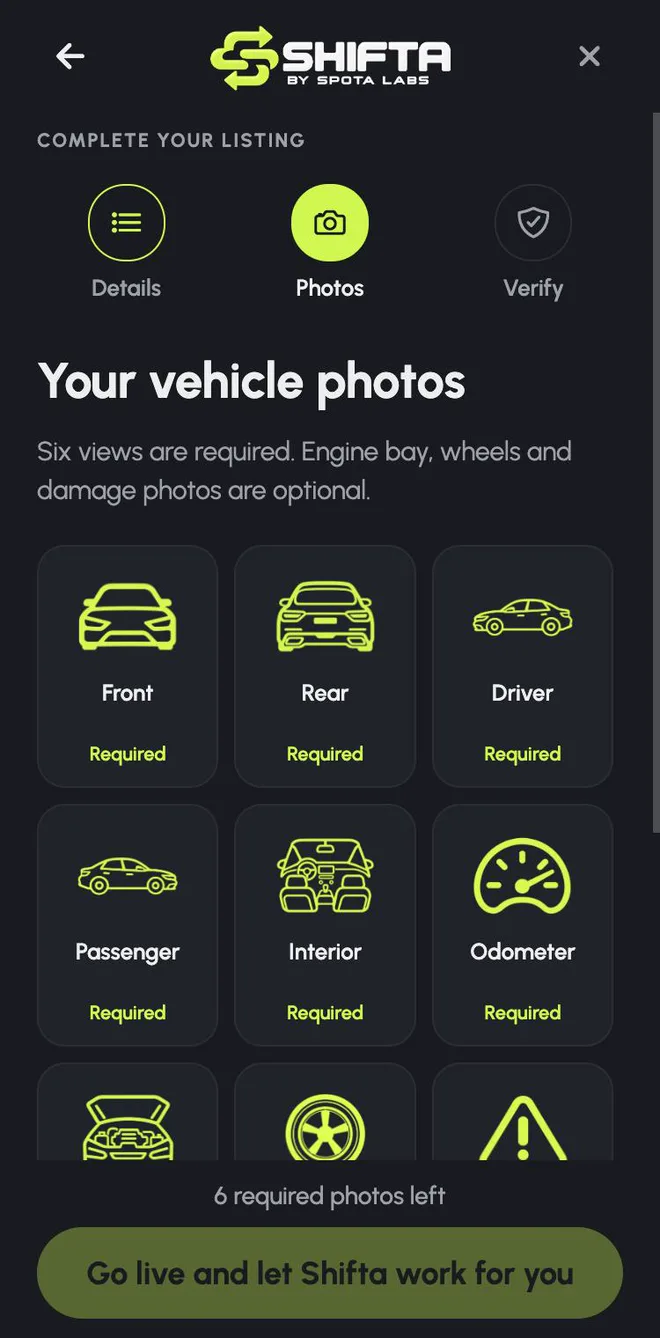
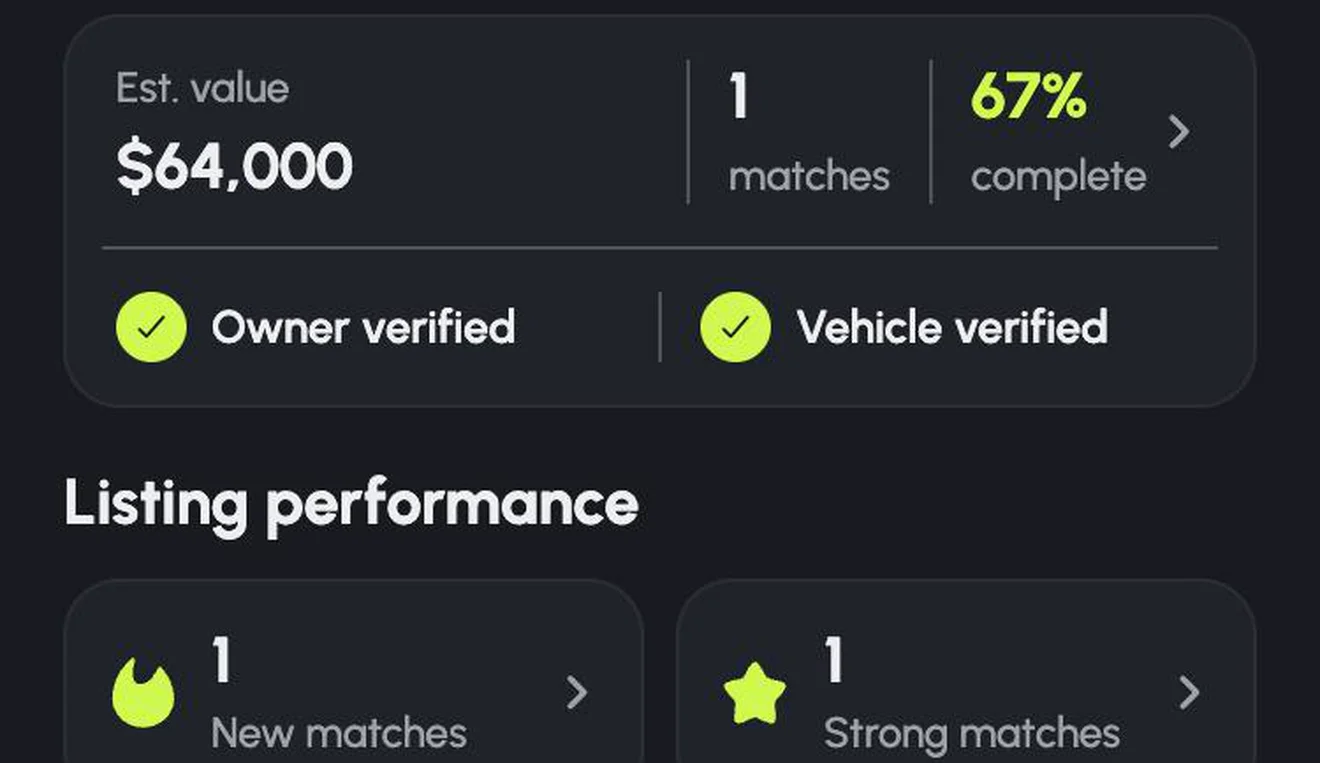
Go live. Tap Go live and let Shifta work for you. Your car is listed, matching starts straight away, and Home shows it as Live. Changed something later? The same button becomes Update my live listing.
4. Verify ownership (optional, recommended)
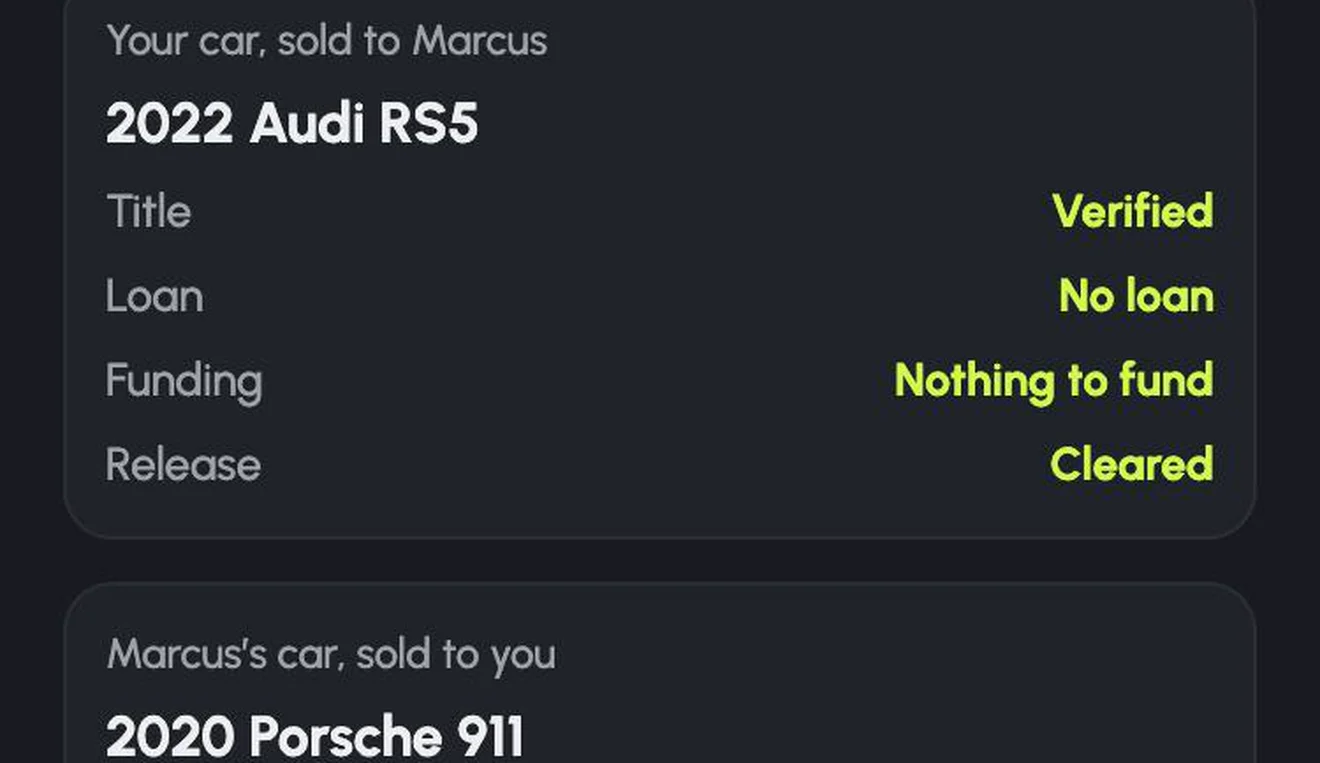
Going live never waits on paperwork. But once you start talking with a match, verification builds trust fast. Upload a title or registration that shows your name and the car, with a lien statement if there's a loan, and once it's reviewed your listing shows Owner verified.
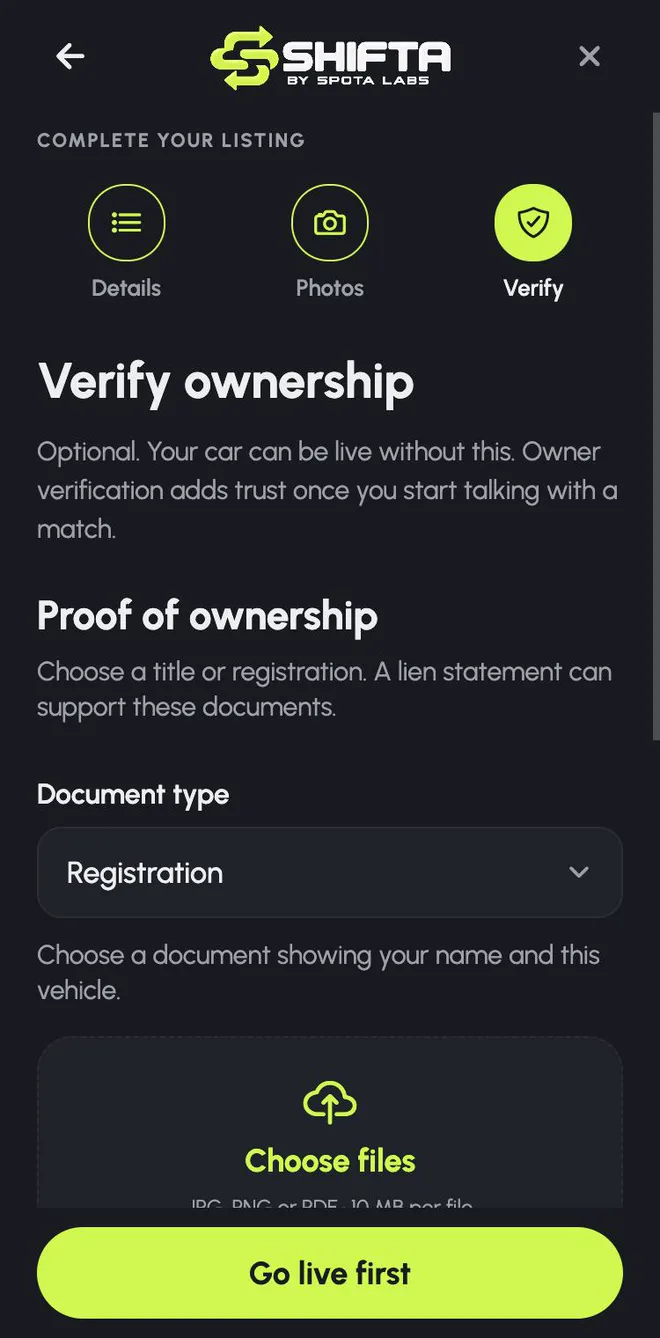
A VIN on its own doesn't prove ownership, which is why the badges are separate. Shifta never shows Owner verified until the documents have actually been checked. And before any exchange happens, a Secure Shift always runs identity, ownership, title and lien checks on both sides.
Tips for a listing that gets matches
- Be generous with what you'd accept. A few alternatives and a slightly wider cash range can multiply your matches.
- Take photos in daylight, with the car clean, from the same height as the car.
- Answer the condition questions honestly. Surprises at inspection are what end trades.
- Turn on Match Watch, so Shifta tells you when the right owner joins.
Ready for what happens next? See Inside the Shift Room.
- shifta
- listing
- vin
- verification
- product update
ShiftaSkip the sale. Trade into your next car.